eSupport Knowledge Base Navigation for Dental4Windows users

The eSupport Knowledge Base for all Centaur Software products is housed in a single shared portal.
The portal contains "How to" instructions for all Centaur Software products, applications, and integrated solutions that we support.
Access the New Knowledge Base
From Dental4Windows
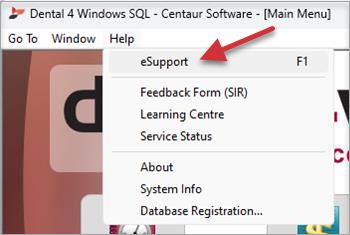
Click the menu > Help > eSupport
The link to the new Knowledge Base (Build 5909+)
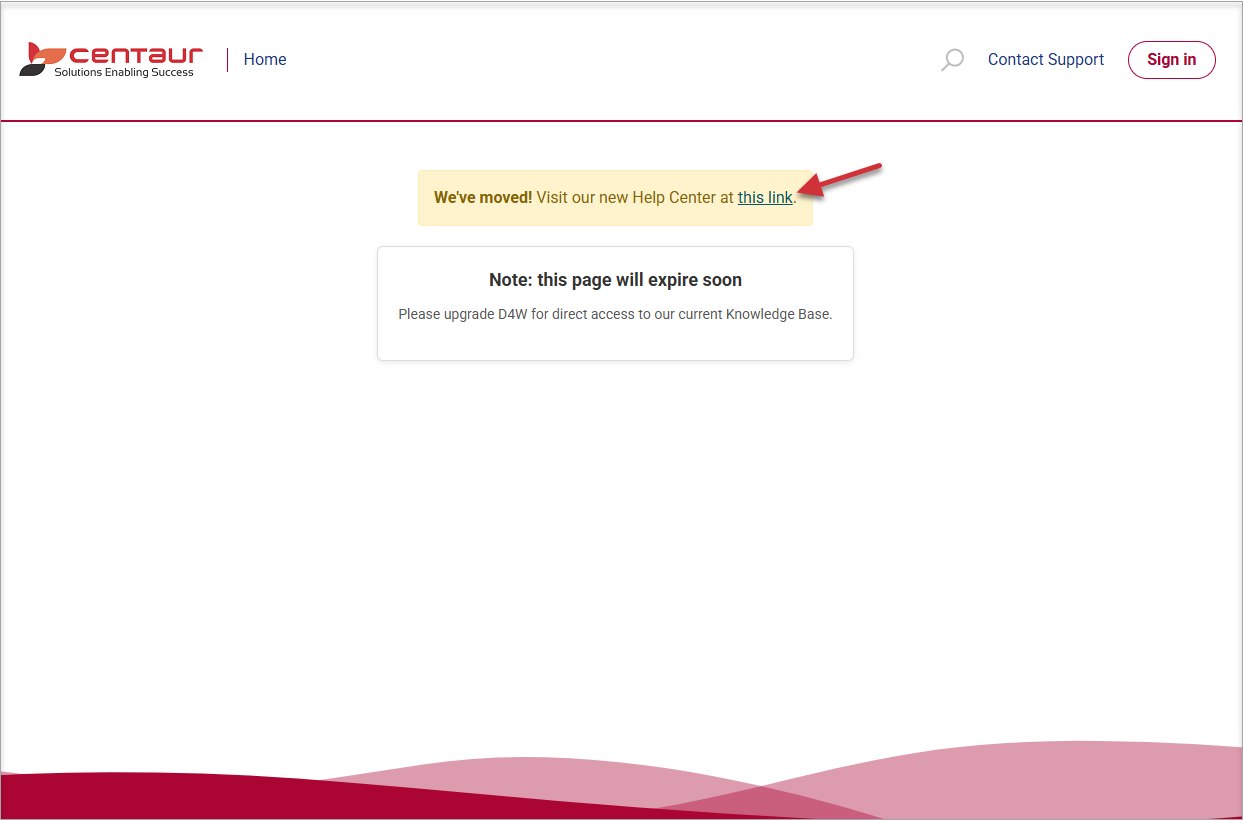
Sites on older build can click the link when you land on the D4W Zendesk portal, to be redirected (until 1 Oct 2026)
Direct URL to the Portal
To access the portal directly, from any device, use the following URL:
eSupport Knowledge Base (home)
The Knowledge Base Categories
- Dental4Web - Dental4Web instructions for System Setup, New Features, FAQs, eLearning & overall "How to" instructions
- MediaWeb PACS - all MediaWeb PACS related "How to" instructions & New features
- Dental4Windows - Dental4Windows instructions for System Setup, New Features, FAQs, Learning Videos, overall "How to" instructions, Mediasuite Imaging included
- D4W Mobile App - Instruction for Mobile App users
- eServices - Instruction for the eServices Portal & eAppointment, eForms, ePayments, eKiosk for both Dental4Windows & Dental4Web users
- Integrated Solutions - Instruction for Applications linked Dental4Windows & Dental4Web such as: NDP, Satora, PatientCare, Second Opinion
- D4W Marketing - Instruction for both Dental4Windows & Dental4Web users
Navigating
Notes:
- Heading colours change (blue) as you hover over with your mouse.
- Instructions are now in article threads, meaning that instead of multiple articles for a subject, there is now in most cases only one (sometimes two) article threads that includes all instruction.
- Use your mouse to scroll through the list
- You may choose to select a Category from the KB sectionsin the navigation menu
- Once you have selected the product (i.e. Dental4Windows)
- Select the section (i.e Staff Management) & sub section (i.e. Staff)
- Some sections do not have a sub section and lead directly into the article list
- Some sections do not have a sub section or an article list and goes directly into the only article
- Next select the article required.
- Staff instructions are now in one article thread
- Move back and forth using the Category / Section / Sub Section
Search
Search for Sections, Articles, Topics within Articles
Tip:
It is recommended that you are in the product category first or else it will search all categories.
 The closer you are to your destination when you search, the fewer results you'll need to sort through
- Use the Search function to find an article thread
- Use the Table of Contents at the top of the Article thread to search & select the topic required or scroll through the full thread until you find what you are looking for
- Once you find the topic, you are able to use the scroll or the Up arrow to go back to top
Links
Some Article threads also have links. Links can take you to:
- Related Articles (Article thread Name)
- Direct link to a topic within an article (direct URL to topic heading within an article thread)
- To external websites (Website addresses)
Throughout the Articles, links are set within a blue info box.
Article Introductions /Notes / Alerts / Warnings / Ideas
Article introductions & summaries are set in grey box
Please note notifications are set in a yellow box
Alerts are set in an orange box
Warnings (rarely required) are set in red box
Ideas/Tips are set in a green box
Download & / or Print
- Download as PDF
- Print article
- Expand to hide navigation list
eSupport Answer Bot "BrainBox"
Browse through our collection of articles and/or ask our BrainBox answer bot to find a solution from the knowledge base
- Click on the
widget found at the bottom right of your screen
- Select Knowledge base.
- Scroll and view a list of the products
- Or click on Chat with bot in the Answer Bot to ask the BrainBox a question.
- See the quick step response or select from the list of articles provided based on your question.Hint: Always add the product name in the question so the eSupport BrainBox knows where to start search.

Notes: We would love to know if we are doing it right.
Let us know if you think an article was helpful (including this one) by selecting Yes or No at the bottom of the article threads