Arrived, Checked In and Checked Out in Dental4Windows

A patient and time tracking feature found by right clicking on the appointment.
Mark an Appointment as Arrived, Checked In or Out
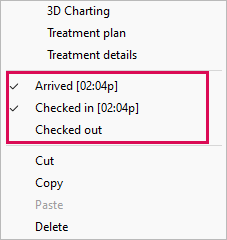
- Right click on patients appointment
- Click action needed, e.g. Arrived
Arrived: This indicates the patient has arrived and is in the waiting room.
Checked In: This indicates the patient is in the treatment room
Checked Out: The patient has left the treatment room.
Late: If turned on, this indicates the patient is late for their appointment
Link Marking Patient as Arrived to a Status
When a patient is marked as Arrived, the Attended status will automatically be added to the appointment.
- Go to the Appointment Book > Options menu
- Set Appointment Status Types
Select the appropriate status against Set official ARRIVED appointment Status
Click Ok