Windows Voice Access & Dental4Web

Voice Access is a feature in Windows that enables anyone to control their PC and author text using only their voice. With the latest updates in Windows 11, the Voice Access has become quite improved and usable. Windows Voice Access (also known as Voice Typing) is compatible with any Dental4Web note editor such as Treatment Plan / Treatment clinical notes, Charting selected tooth notes, Cancellation & Standby list notes and Patient Letter content.

To discover more and learn how to setup voice access, visit the Microsoft support site.

Note: This is not a replacement for a high quality / accuracy specialist AI Scribe, but rather as a FREE Windows feature and introduction to voice typing within our applications.
Windows Voice Access features
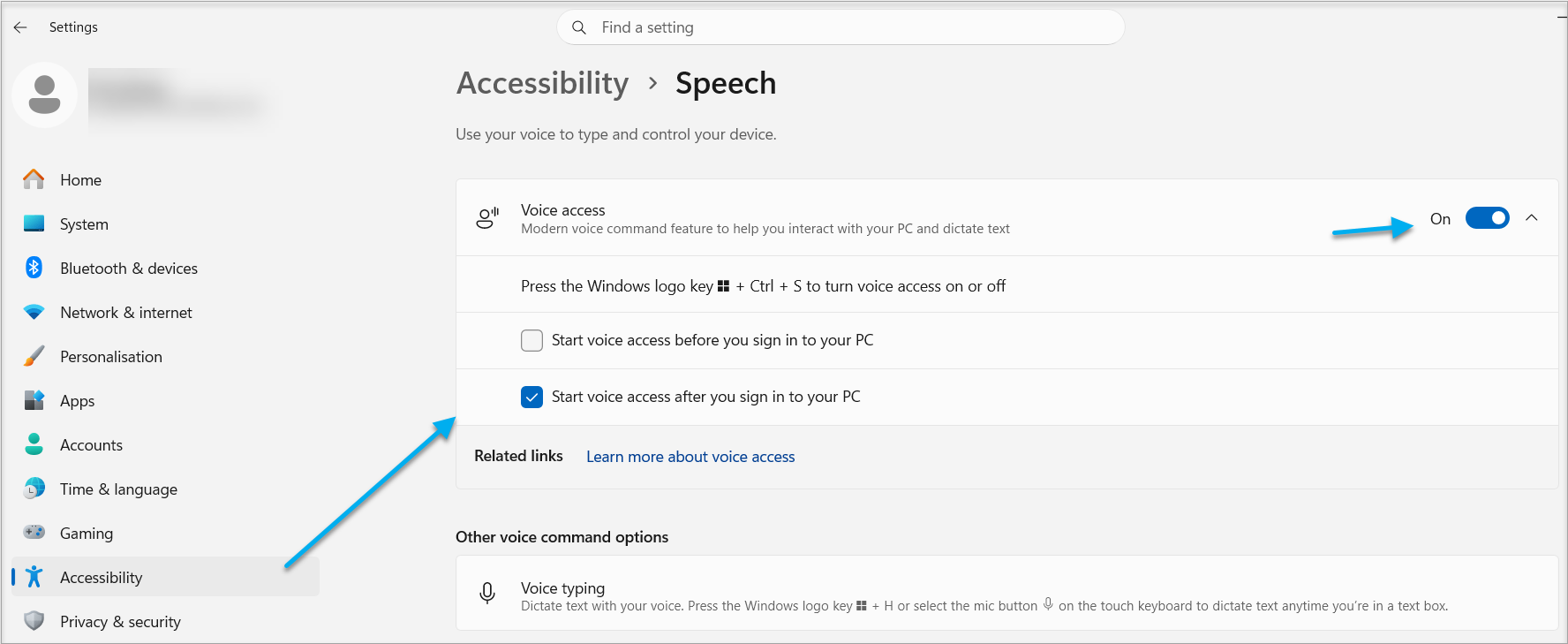
Turn on & control Voice Access activation
Use in all your windows applications
Once you turn on the above feature, the permanent bar at the top of your PC controls your Voice Access.. (Including when you are in Dental4Web)
Add to vocabulary
Example:
Dictate Text with Voice Options
Windows Voice Access / Voice Typing in Dental4Web Notes Editor
- Select any Notes Editor in Dental4Web such as Treatment Plan or Treatment Clinical Notes
Examples: Treatment Plan or Treatment Clinical Notes, Charting notes for a selected tooth, Cancellation or Standby List notes or Letters. - Click on the Voice Access microphone button or say " voice wake up"
- In Dental4Web, click into the notes area where you wish to voice type and commence speaking
- Click the microphone button to stop voice typing
- In Dental4Web, check spelling and punctuation before clicking OK to save your notes