Appointments V4: Setup Appointment SMS Templates in Dental4Web

ATTENTION: Appointment Book V4 is in PILOT MODE
- Available only to a selected few while we complete the pilot phase.
- General release is coming soon.
- During the Pilot phase, we are creating Knowledge Base articles and will continue to add and update them.

Appointment messages are sent from the Appointment book, however the templates are setup in the Mail Merge page
Where to find Mail Merge Page
Appointment messaging templates are setup in the Mail Merge Page.
Click the navigation menu > Debtors & Marketing > Mail Merge Setup page
Setup Appointment SMS Templates
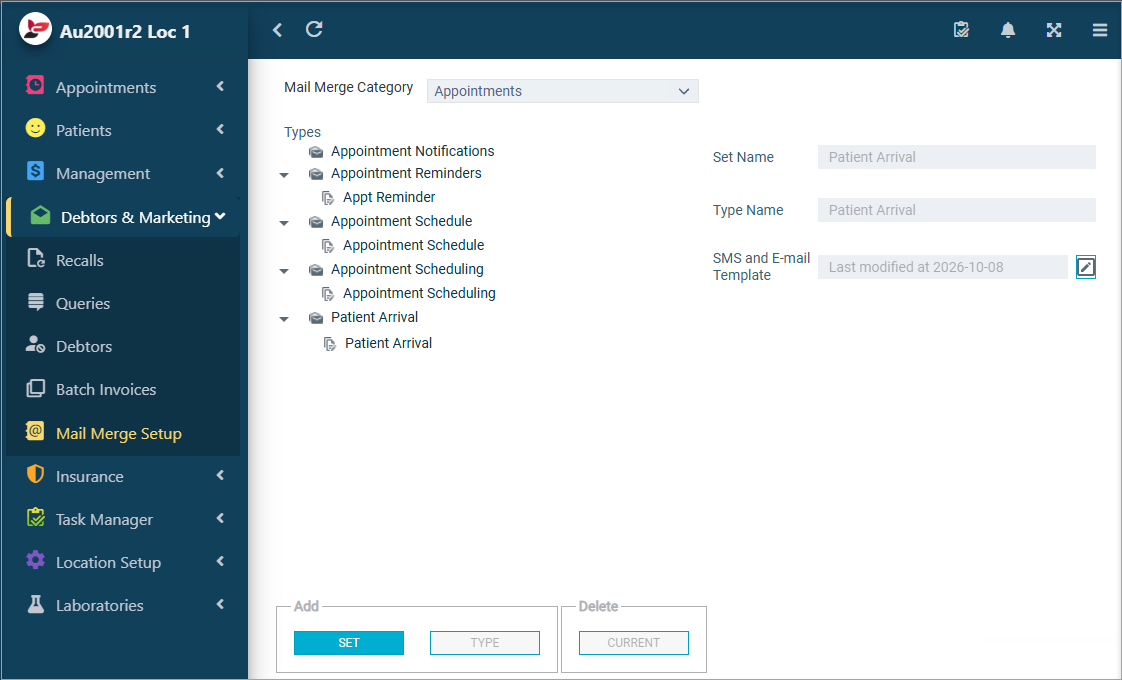

Please Note: The General Setting must be set to YES for the Mail Merge Categories are visible in the Types list
See individual topics below for links to the relevant General Setting.
Arrival SMS Template
Setup the message that will be sent when the patient has been marked as arrived.
This is commonly used to communicate with the patient when using self-check-in services such as D4Web eKiosk
 The Send SMS on Patient Arrival General Setting must be activated before proceeding.
- Mail Merge Category: Appointments
- Select Patient Arrival
- Click the edit icon to create the template
- Enter details of the template
- Click Add field
- Select the <<input fields>> to use from the "List of fields" window
- Click OK
- Once the template is complete, click File > Save > Exit
or
Click Exit and YES to save / NO to not save / CANCEL to stay in the template
Appointment Scheduling SMS Template
Setup the message that will be sent when appointment has been scheduled for an existing patient.
The Send SMS on Appointment Scheduling General Setting must be activated before proceeding- Mail Merge Category: Appointments
- Select Appointment Scheduling
- Click the edit icon to create the template
- Enter details of the template.
- Click Add Field
- Once the template is complete, click File > Save > Exit
or
Click Exit and YES to save / NO to not save / CANCEL to stay in the template
Manual Appointment Reminder SMS Templates
Setting up SMS templates to use for appointment reminders allows for selection from the template list when sending individual messages. If not preset, individual SMS reminders will have to be freehand every single time.
You are also able to setup multiple types of templates to the "Appointment reminder" set. This comes in handy when you have multiple providers with different message requirements as each provider (or a group of) can have their own customised template
The Use templates for Appointment Reminders General Setting must be activated - Mail Merge Category: Appointments
- Select Appointment Reminders
- Click Type > Enter Type name, e.g. Appt Reminder A
- Within Use for Providers section
- Type is default: Place a tick if this Type is the default type for all providers (optional)
or
Add: Click the Add icon to select the Providers this type is to be used for - Click the Edit icon against SMS and E-mail Template
- In the Mail Merge tab, enter the reminder template details
- Click Add Field to add input fields to the template
- Once the template is complete, click File > Save > Exit
or
Click Exit and YES to save / NO to not save / CANCEL to stay in the template - Repeat steps to add more reminder types (if applicable) to this set
Patient Check Out SMS template
Setup the message that will be sent when a patients appointment is marked as Checked out.
The Send SMS on Patient Check Out General Setting must be activated - Mail Merge Category: Appointments
- Select Patient Check Out
- Within Use for Providers section
- Add: Click the Add icon to select the Providers this type is to be used for (if not all of them)
- Click the Edit icon against SMS and E-mail Template
- In the Mail Merge tab, enter the reminder template details
- Click Add Field to add input fields to the template
- Once the template is complete, click File > Save > Exit
or
Click Exit and YES to save / NO to not save / CANCEL to stay in the template
Setup New Patient Registration SMS Template
Setup the message that will be sent when appointment has been registered/scheduled for a New Patient.
- The Send SMS on Patient Registration General Setting must be activated
- Ensure the New Patient Status is used in Appointment Book
- Mail Merge Category: Patients
- Show Types for Location: Select the Location (if applicable).
- Types: Select Patient Registration
- Click the Edit icon against SMS Template
- In the Mail Merge tab, enter the reminder template details
- Click Add Field to add input fields to the template
- Once the template is complete, click File > Save > Exit
or
Click Exit and YES to save / NO to not save / CANCEL to stay in the template