Reversals in Dental4Windows

Receipt and Invoice reversals can be required for a variety of reasons, from an input errors such as wrong patient or provider to a payment was incorrectly allocated.
Below covers instructions on how to complete the reversal for 8 different scenarios where different types of payment methods are applied.

After a reversal has been completed and the invoice and receipt has to be recreated, take note of original dates of payments as these may need to be backdated so that end of day totals are still accurate.
Reversal for Insurance Claim sent from Dental4Windows with Reversal sent back to Health Fund
When incorrect treatment details e.g. incorrect treating provider have been entered and invoice and receipt applied to that treatment, these need to be reversed in order to correct mistake. There is a particular order in which each reversal needs to be done. When there is more than one payment applied e.g. insurance claim and the gap payment, both need to be reversed. In this scenario Hicaps e-payments will be processed back through the Hicaps Terminal to the health fund and will show up as a reversal in the Claims tab.
This type of reversal is available for claims done today only
Feature Flash Video: Reverse Receipt & Invoice with Insurance eClaim workflow
Receipt -> Invoice -> Treatment
1. Receipts Tab
First any payments (including insurance claims) applied to the invoice need to be reversed.
- Go to Patient Records > Receipts tab
- Highlight the health fund receipt to reverse
- Click the Reverse Receipt icon
- Click Reverse
- For health fund ePayment reversals (Via HICAPS/TYRO/ANZ (Card Required)) sent back through the terminal click Yes
- Highlight the gap receipt/payment to reverse
- Follow steps 3 and 4 above to reverse gap payment
 Here are further instructions on how to reverse a receipt
2. Invoices Tab
Now that no payments are applied to the invoice, invoice can be reversed.
Here are instructions on how to reverse an Invoice3. Treatment Tab
In the Treatment tab, items are yellow again and any adjustments can be made before resubmitting the claim/gap payment

Reversal for Insurance Claim sent from Dental4Windows with Reversal NOT sent back to Health Fund
When incorrect treatment details e.g. incorrect treating provider have been entered and invoice and receipt applied to that treatment, these need to be reversed in order to correct mistake. There is a particular order in which each reversal needs to be done. When there is more than one payment applied e.g. insurance claim and the gap payment, both need to be reversed. In this scenario Hicaps e-payments will NOT be processed back through the Hicaps Terminal.
This type of reversal is available for claims done more than a day in the past only
For the reversal to be sent back to the health fund, this must be done independently of Dental4Windows, either directly on the terminal or by contacting the health fund directly.
Feature Flash Video: Reversal for Insurance Claim sent from Dental4Windows with Reversal NOT sent back to Health Fund
Receipts -> Claims -> Invoices -> Treatment
1. Receipts Tab
First any payments (including insurance claims) applied to the invoice need to be reversed.
- Go to Patient Records > Receipts tab
- Highlight the health fund receipt to reverse
- Click the Reverse Receipt icon
- Click Reverse
- For health fund ePayment reversals (Via HICAPS/TYRO/ANZ (Card Required)) NOT to be sent back through the terminal click Yes
- Highlight the gap receipt/payment to reverse
- Follow steps 3 and 4 above to reverse gap payment
2. Claims
Claim needs to be reversed before the Invoice can be reversed, this can be done from the claims tab.
Here are instructions on reversing a claim 3. Invoices Tab
Now that no payments are applied to the invoice, invoice can be reversed.
Here are instructions on how to reverse an Invoice4. Treatment Tab
In the Treatment tab, items are yellow again and any adjustments can be made before reentering claim/gap payments
Reversal for Insurance Claim NOT sent from Dental4Windows
When an insurance claim has not been processed from Dental4Windows and the claim amount has been entered manually into Dental4Windows, when this is reversed nothing will be sent back to the insurance company. If the claim needs to be reversed back to the health fund this must be done directly on the terminal independently of Dental4Windows.
Feature Flash Video: Reversal for Insurance Claim NOT sent from Dental4Windows
Receipts -> Invoices -> Treatment
1. Receipts Tab
First any payments applied to the invoice need to be reversed. When there is more than one payment applied e.g. manual insurance claim and the gap payment, both need to be reversed but will usually appear as 1 payment but when selected will show 2 amount that have different payment methods applied
Manual Hicaps amounts entered will NOT be processed back through the Hicaps Terminal and will NOT show up as a reversal in the Claims tab.
Manual insurance claim amount entered and gap payment
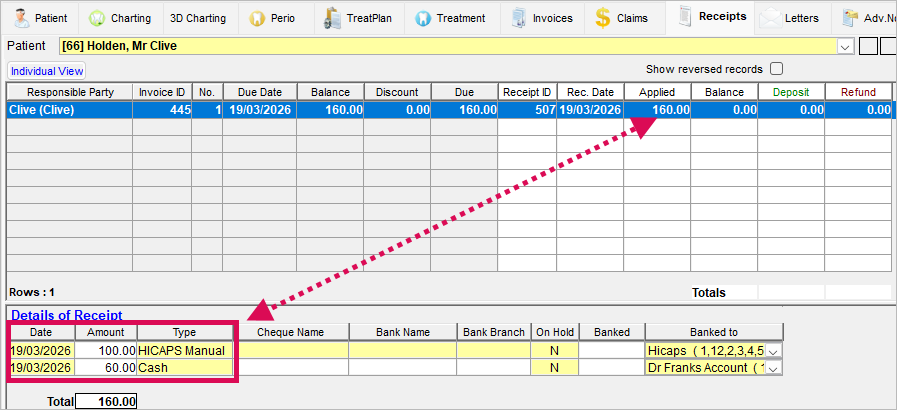
Here are instructions on how to reverse a receipt 2. Invoices Tab
Now that no payments are applied to the invoice, invoice can be reversed.
Here are instructions on how to reverse an invoice3. Treatment Tab
In the Treatment tab, items are yellow again and any adjustments can be made before reentering the claim/gap payments

Reversal for No Insurance Claim
When there is no insurance claim and the patient has paid the invoice in full generally there is only 1 payment that will need to be reversed.
Feature Flash Video: Reversal for No Insurance Claim
Receipts -> Invoices -> Treatment
1. Receipts Tab
First the payment applied to the invoice need to be reversed.
Here are instructions on how to reverse a receipt 2. Invoices Tab
Now that no payments are applied to the invoice, invoice can be reversed.
Here are instructions on how to reverse an invoice3. Treatment Tab
In the Treatment tab, items are yellow again and any adjustments can be made before recreating Invoice and applying payment.

Reversal for Deposit Allocated
Sometimes part of the payment that needs to be reversed was a deposit. Below explains what happens when an allocated deposit is reversed and how to do this.
Feature Flash Video: Reversal for Deposit Allocated
At time Receipts and Invoices need to be reversed that has part or all of the payment being an allocated deposit.
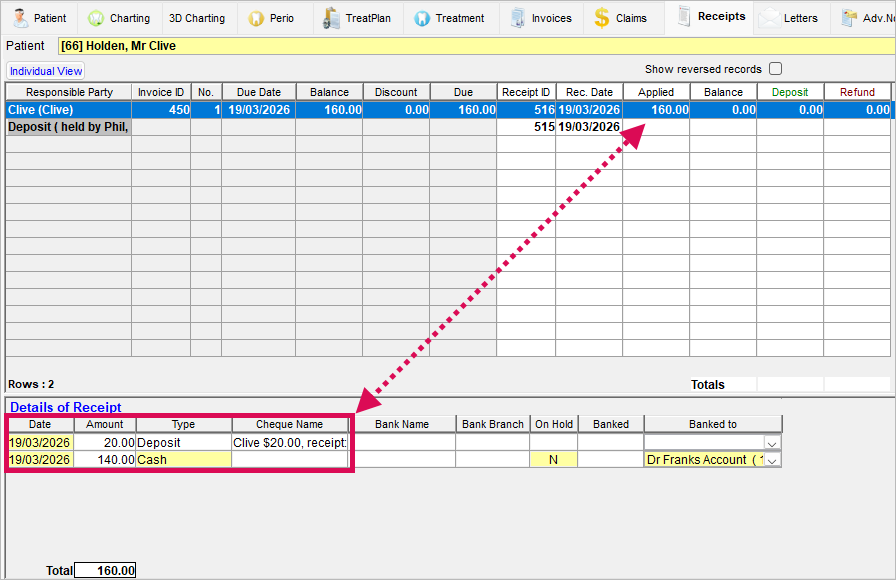
Once receipt with allocated deposit is reversed, deposit will now be an unallocated deposit and can be reallocated to the invoice when reprocessed.

Reversal for Unallocated Deposit
Unallocated deposits can be reversed (deleted).
Feature Flash Video: Reversal for Unallocated Deposit
- Go to Patient Records > Receipts tab
- Highlight the deposit receipt to reverse
- Click the Reverse Receipt icon
- Click Reverse
Reversal for EFTPOS e-payment to be sent back through terminal
When an EFTPOS e-payment has been used as a payment method this can be reversed with the reversal being reflected in the patients bank account. This will be processed through the terminal and the patient will need their card to process.
Feature Flash Video: Reversal for EFTPOS e-payment to be sent back through terminal
Receipt -> Invoices -> Treatment
1. Receipts Tab
- Go to Patient Records > Receipts tab
- Highlight the receipt to reverse
- Click the Reverse Receipt icon
- Click Via HICAPS/TYRO/ANZ (Card Required)
- Click Reverse
2. Invoices Tab
Now that no payments are applied to the invoice, invoice can be reversed.
Here are instructions on how to reverse an invoice3. Treatment Tab
In the Treatment tab, items are yellow again and any adjustments can be made before recreating Invoice and applying payment.
Reversal for EFTPOS e-Payment NOT to be sent back through Terminal
When an EFTPOS e-payment has been used as a payment method this can be reversed with the reversal NOT being reflected in the patients bank account. This will NOT be processed through the terminal and within Dental4Windows only.
Feature Flash Video: Reversal for EFTPOS e-Payment NOT to be sent back through Terminal
Receipt -> Invoices -> Treatment
1. Receipts Tab
- Go to Patient Records > Receipts tab
- Highlight the receipt to reverse
- Click the Reverse Receipt icon
- Click Manually
- Click Reverse
2. Invoices Tab
Now that no payments are applied to the invoice, invoice can be reversed.
Here are instructions on how to reverse an Invoice3. Treatment Tab
In the Treatment tab, items are yellow again and any adjustments can be made before resubmitting the claim/gap payment
Related Articles
Setup New Provider & Manage their Records in Dental4Web
This article covers Setup & Management of any type of Provider. Providers also includes: Dentists and any Dental Practitioner with a provider number, Locums, Cert IV Radiography Elective Assistants, Dental Hygienists, Therapists & Oral Health ...Insurance Company Plans in Dental4Windows
Listed below is how to add a new insurance company, applying a co-payment to and invoice and an eClaim reconciliation with remittance. Add New Insurance Company Feature Flash Video: Add a New Insurance Fund and Plan Add New Insurance Company Go to ...Setup Security Features in Dental4Windows
Below are instructions on understanding the security tab, setup security on modules/tabs/actions, setup who can or cant access or complete an action, add or modify security groups, setup supergroups, setup aliases or remove a provider from alias's, ...Working in the Treatment Tab (Admin Features) in Dental4Windows
The Treatment tab is used for both clinical & admin purposes. The purpose of this article is for the administrative side of treatment and includes instructions for invoicing, payments & reprinting. Links to the various other related features ...Setup New Provider & Manage their Records in Dental4Windows
Listed below are instructions handing provider numbers for hygienists, Therapists and Oral Health Therapists for CDBS claims, add a new provider, add a new hygienist, add a new locum, Add a New Dental Assistant (Cert IV Radiography Elective), set ...